
Of the seven security fixes in WordPress 7.1.3, at least five can be started by someone who isn't an administrator. Security firm Patchstack counts two that start with an unauthenticated visitor and three that need a Contributor or Author account. Two plus three is five out of WordPress's seven. That count is ours, made by setting Patchstack's breakdown against WordPress's list.
So here is the answer for a small business. Update promptly. Back up before you do. Then look hard at who holds a login on your site.
The rest of this page is the routine we at Good Web Designer suggest, for this release and every one after it.
What did WordPress 7.1.3 fix?
| As WordPress lists it | In plain English |
|---|---|
| Stored XSS on the Comments admin page via pending comments | A script hidden in a pending comment could run when staff view the Comments screen; starts with an anonymous visitor and needs a moderator to click a link |
| DoS issue in WP_Http::make_absolute_url() | A flaw that could be used to tie up the site |
| Second-order SQL injection in WXR export | A database-tampering flaw triggered during an export |
| Author-role users able to sticky posts | Authors could pin posts to the top, which their role shouldn't allow |
| Unauthenticated disclosure of comments on private and unpublished posts | Strangers could read comments on private or unpublished posts without logging in |
| Imgur embeds vulnerable to XSS | An Imgur embed could carry a harmful script |
| Forgeable parameters in the {status}_{type} hook causing action name collision | One action in WordPress could be passed off as another |
Source: WordPress.org, Patchstack
WordPress published 7.1.3 on 6 October 2026 with 7 security fixes and 4 bug fixes. The release post lists all seven, and the table above puts each one in plain English.
For a typical small business site, the two that stand out both involve comments. Patchstack says the comment-feed leak and the comments XSS start with an unauthenticated visitor, although the XSS also needs a moderator to click a link in a pending comment. XSS, or cross-site scripting, means a harmful script gets saved on your site and runs in the browser of whoever views it.
One more matters even after you update. WordPress lists Imgur embeds vulnerable to XSS. Patchstack says the fix does not clear existing cached oEmbed content, so a bad embed already on a page keeps showing until you clear the cache. That is why clearing the cache is part of the routine below.
Do I need to drop everything to update?
Because this is a security release, it is recommended that you update your sites immediately.
WordPress.org
Update as soon as you can, but this isn't a drop-everything emergency.
Security firm Patchstack
Update promptly, after a backup.
The two sources differ in tone. WordPress says: "Because this is a security release, it is recommended that you update your sites immediately." Security firm Patchstack is calmer: "Update as soon as you can, but this isn't a drop-everything emergency."
Our view sits between them. Do it promptly, and do it on a day when you have time to take a backup first. A rushed update squeezed between customers is how a small problem becomes a broken site.
If automatic updates aren't an option for your site, the Australian Cyber Security Centre suggests setting reminders and scheduling updates outside business hours.
Back up first, and check the backup works
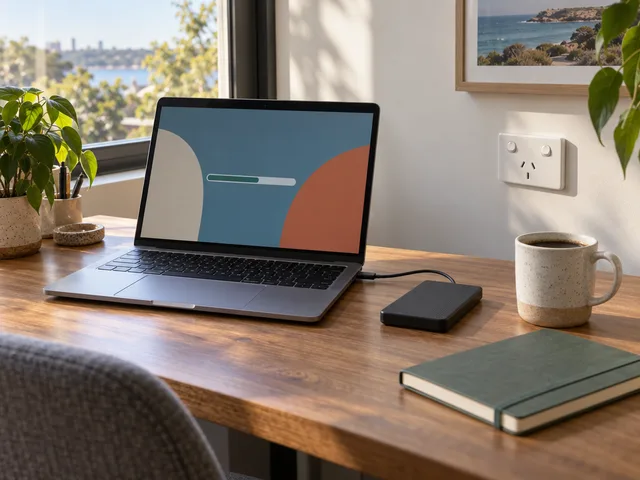
No update is risk-free. A plugin can clash with the new version, or a custom theme can misbehave. The backup is what lets you undo it.
The WordPress developer handbook says to back up your website before upgrading so you can restore it if there are problems. Its manual-upgrade steps go further: check that your backups exist and are usable, a step it calls "This is essential". They also say not to attempt a manual upgrade until the backups are done.
The Australian Cyber Security Centre gives the same advice for every small business: "back up your website regularly so it can be restored after an incident".
Not sure where your backups live? Ask your host. The ACSC suggests asking whether they back up, how often, and whether backups are stored offsite.
How to update WordPress
The order an update runs in
Source: WordPress Developer Resources, WordPress.org, Cyber.gov.au, Patchstack
This is the order we would run it in.
- Back up, and confirm the backup can be restored. See the section above.
- Update WordPress itself. In your Dashboard, click "Updates", then "Update Now". The handbook describes the same one-click upgrade. You can also download the release from WordPress.org. Sites that support automatic background updates start the update automatically, so check the Updates screen in case yours has already run.
- Update plugins and themes. They appear on the same Updates screen, and they need their own clicks.
- Clear the site's cache. Patchstack advises clearing the cache after updating, for the Imgur reason above.
- Check the site. Load your home page and your most-visited pages. Send yourself a test message through the contact form, because a form that quietly stops sending costs you enquiries without telling you.
- Check roles and auto-updates. Patchstack suggests auditing who holds Contributor or higher roles while you're in the Dashboard. The ACSC says to turn on automatic updates where possible.
If your host gives you a control panel, tools such as WP-Toolkit in cPanel or Plesk can also run and schedule updates.
Is my WordPress site safe after a security update?
After the update
Updating closes the flaws in this release. It does not make a site safe on its own.
Updating WordPress doesn't update everything, because the Small Business Cyber Security Handbook treats the content management system and its plug-ins as separate things to keep current.
The same handbook says to secure logins with MFA or strong passwords. It also says to enable auto-renewal on the domain name to prevent accidental expiry. An expired domain takes the whole site offline, however up to date it is. If your domain is a com.au, our explainer on auDA's proposed change for domains named after what you sell covers the other half of keeping it.
Who has an account on your site?
What it takes to start a 7.1.3 flaw, per Patchstack's breakdown
Source: Patchstack
This is where the opening count earns its place. A security release isn't only about strangers, because several of these fixes involve ordinary roles such as Contributor, Author and moderator that small sites often hand out freely.
Think about who you have given a login over the years: a former staff member, a copywriter from a project long finished, a family member who once fixed a typo. Each account is a door. Patchstack notes that three fixes need a Contributor or Author account, and one needs an administrator to run an export.
The ACSC's rule is simple: limit website admin access to those who need it and give users only the privileges their role needs. Open the Users screen, sort by role, and remove or downgrade anyone who no longer needs their level of access.
Do I need to update PHP?
PHP is the programming language WordPress runs on. Your host sets the PHP version, and the WordPress Update Now button doesn't change it.
PHP matters for security too. Patchstack says the previous release, 7.1.2, fixed a single unauthenticated vulnerability that could lead to remote code execution under certain PHP configurations.
If you don't know which PHP version your site runs, your host's control panel or support team can tell you. A PHP change can break older plugins and themes, so treat it like any update: take a backup first, and if the site has been customised, hand the job to whoever built or hosts it.
Why this will keep happening
- WordPress 7.1.2About two weeks before 7.1.3: fixed one unauthenticated vulnerability that could lead to remote code execution under certain PHP configurationsPatchstack
- WordPress 7.1.3, 6 October 20267 security fixes, 4 bug fixesWordPress.org
- Fixes for older branchesBackports rolling outWordPress.org
- Next release: same routine
Source: Patchstack, WordPress.org
Security releases come in runs. Patchstack says 7.1.2 landed about two weeks before 7.1.3. Then 7.1.3 arrived on 6 October 2026.
Older versions get some protection. WordPress says the fixes go to branches eligible for security fixes, and that backports are in progress and will ship as they become ready. So backports are rolling out. The same post also says "only the most recent version of WordPress is actively supported".
That one line is the whole case against "set and forget". A site that nobody updates drifts further from the version WordPress supports with every release. The routine above is worth doing as a habit, not just as a reaction to this release.
WordPress 7.1.3 at a glance
- 6 October 2026ReleasedWordPress.org
- 7Security fixesWordPress.org
- 4Bug fixesWordPress.org
What it takes to start a fix Patchstack
- 2start with an unauthenticated visitor
- 3need a Contributor or Author account
- 1needs an administrator to run an export
The routine WordPress handbook
Source: WordPress.org, Patchstack, WordPress Developer Resources
When to hand it to someone else
Running the routine yourself makes sense when the site is simple and you have a backup you trust. Hand it over when any of these is true:
- the site has been customised, with a bespoke theme or code nobody on your team wrote
- it runs old plugins or an old PHP version
- you don't have a backup, or you've never tested restoring one
If someone else already looks after your site, the ACSC suggests you speak with them about security controls and maintenance practices. Ask them four plain questions: who runs updates, how often, where the backups are kept, and when a restore was last tested.
If you'd like to talk through your own site's update and backup routine, tell Good Web Designer what you're running through our contact page, and we'll take it from there.
Sources
- https://wordpress.org/news/2026/10/wordpress-7-1-3-maintenance-and-security-release/
- https://patchstack.com/articles/wordpress-7-1-3-security-release/
- https://developer.wordpress.org/advanced-administration/upgrade/upgrading/
- https://www.cyber.gov.au/publication/small-business-cyber-security-handbook/protecting-devices-systems-and-networks
- Pictures in this guide are illustrations, not photos of our jobs.